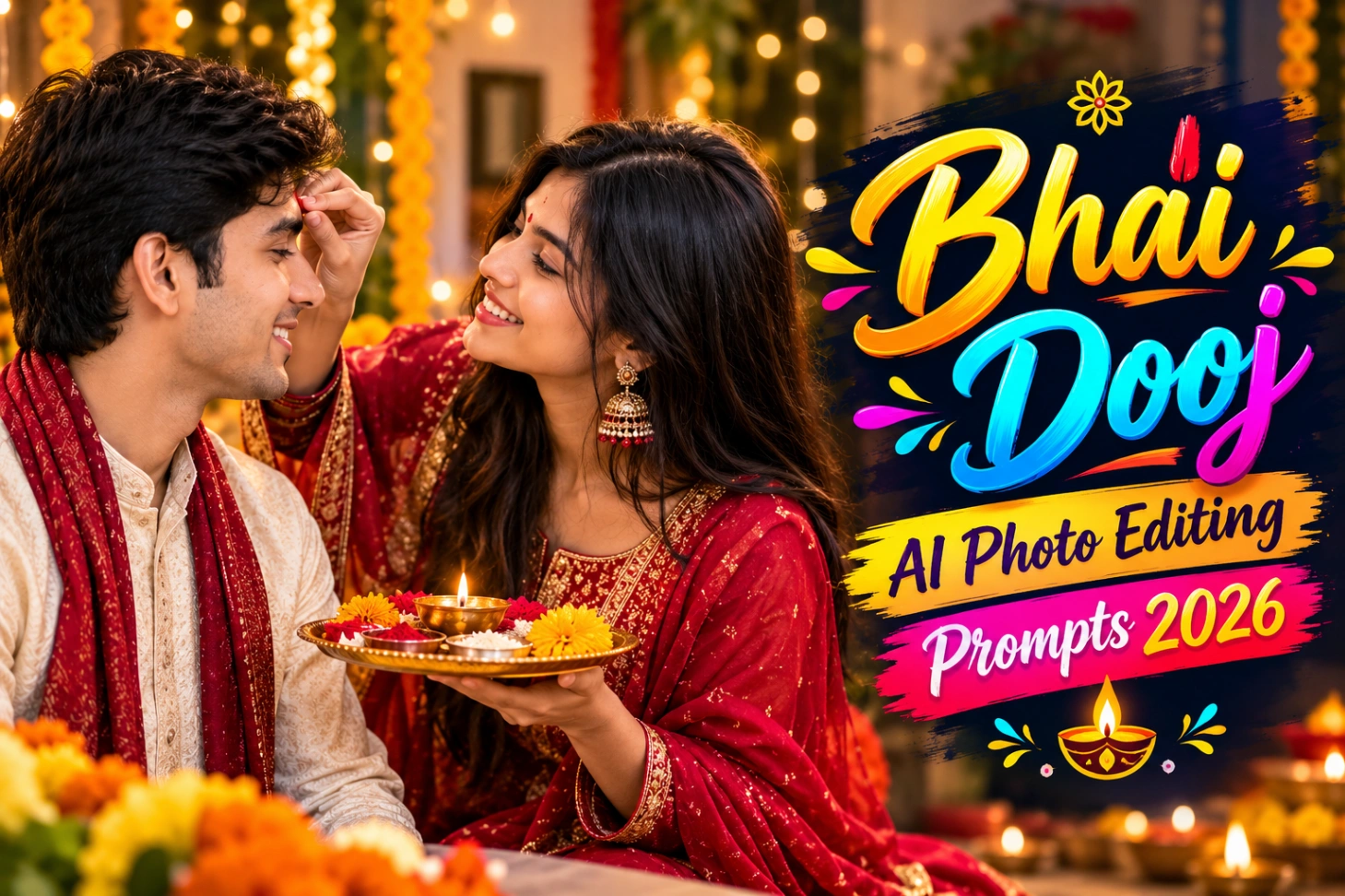
Bhai Dooj AI Photo Editing Prompts 2026: Tilak Wale Portraits
Bhai Dooj falls on November 11 this year, right in the middle of the Diwali week. It is the quietest festival of the season, just a brother, a sister, and a tilak full of affection. The trouble is that most tilak ceremony photos come out flat: dull indoor light, messy backgrounds, and none of the warmth the moment actually had. Bhai Dooj AI Photo Editing Prompts 2026 fix that without any editing skills. Inside you will find five Gemini prompts for Bhai Dooj ready to paste, a simple step-by-step method for sibling portrait editing, practical tips for better results, and answers to the questions everyone asks before editing their Bhai Dooj pictures.
What Are Bhai Dooj AI Photo Editing Prompts 2026?
An AI photo editing prompt is a written instruction you give to an AI app along with your photo. Instead of moving sliders in an editing app, you describe the result you want in plain words, and the AI rebuilds the photo to match. A prompt like “warm close-up of a sister applying tilak, golden evening light, marigold garlands blurred behind” tells the model exactly what scene to create around your real faces.
Bhai Dooj prompts go one step further: they are written for the specific moments of this festival, from tilak photo editing to glowing aarti portraits. The tilak ceremony, the aarti glow, the sibling candid, each needs different light, different decor, and a different mood. Generic “make it festive” prompts miss all of that. These five are tuned for Bhai Dooj itself, so the results look like the festival, not like a random filter.
Inside the Pack: 5 Prompts for Every Bhai Dooj Photo
Five prompts, each with a clear job:
- Tilak Close-Up. A warm close-up of the tilak moment with pooja thali, diya flame, and marigold blur. Best for: the main portrait of the day.
Transform my uploaded photo into a warm close-up of a sister applying tilak on her brother’s forehead. Keep both faces exactly the same. Add a decorated brass pooja thali with diya flame, roli, and rice grains in her hands, marigold garlands softly blurred behind them, and golden evening light on their faces. Photorealistic, natural skin texture, festive and emotional.
- Aarti Glow. The sister performing aarti with the diya flame glowing between them. Best for: a dramatic, cinematic shot.
Edit my photo so the sister is performing aarti for her brother, a small brass diya flame glowing between them. Faces must stay identical to the original. Warm cinematic lighting, gentle shadows, diyas and fairy lights in the background, traditional Indian clothing in rich festive colours, ultra-detailed and realistic.
- Laughing Duo. A candid mid-laughter moment with subtle festive touches. Best for: a natural Instagram post.
Edit my uploaded sibling photo into a candid laughing moment: brother and sister mid-laughter, heads tilted toward each other. Keep faces unchanged. Add subtle festive touches: fairy lights bokeh behind, warm tones, a hint of marigold in a corner. Natural, unposed feel, smartphone photography aesthetic, realistic skin and lighting.
- Protective Arm Pose. Brother’s arm around the sister’s shoulder, warm family feeling. Best for: the family WhatsApp group.
Edit my photo so the brother has his arm around his sister’s shoulder, both smiling at the camera. Preserve facial identity exactly. Festive home background with diyas, marigold strings, and warm fairy lights, golden hour glow on faces, natural and affectionate, high-detail realistic portrait.
- Cinematic Wide Shot. Siblings in a grand decorated doorway with rows of diyas. Best for: a framed print.
Expand my uploaded photo into a cinematic wide portrait: siblings standing in a grand traditional doorway decorated with torans of mango leaves and marigold, rows of diyas lining the steps. Keep both faces identical. Dramatic warm lighting, deep colours, film-still quality, ultra-detailed festive atmosphere.
How to Use Them in Gemini and ChatGPT
You need no editing app for this. The whole method is four steps:
- Upload your photo first. Open Gemini or ChatGPT on your phone and attach the photo before anything else. The AI must see a real face to work with.
- Paste the prompt exactly as written. Copy everything inside the quote box, including the face-protection line, and send it in the same message.
- Wait a few seconds for the edited photo to appear. The first result is usually close to what you asked for.
- Fix small issues by replying. If the face drifted, just write “keep the face exactly the same as the uploaded photo” and the AI will correct that part.
Skip step one and the whole thing falls apart. A prompt without an uploaded photo makes the AI invent strangers, and invented faces never look like you or your sibling.
Tips for Better Bhai Dooj Edits
Small choices before you paste matter more than the prompt itself. Use this table first:
| Tip | Why it works |
|---|---|
| Use a sharp, front-facing photo | The AI maps faces best when both are clearly visible |
| Shoot in soft daylight, not yellow tube light | The model keeps your original light direction in the edit |
| Crop to one or two people | Wide group shots shrink faces beyond what AI can rebuild |
| Keep the background fairly plain | The prompt already adds diyas and marigolds for you |
| Edit one photo at a time | Multi-photo prompts dilute face accuracy badly |
If most of your Bhai Dooj shots are indoor photos with dull light, start with the Tilak Close-Up. It rebuilds the lighting completely, so a bad original still comes out warm and festive.
For more seasonal styles through the year, the Bhai Dooj editing ideas on PresetEditor get new prompt packs with every festival.
Avoid These Editing Mistakes
| Problem | Quick fix |
|---|---|
| The AI changed a face | The face-protection line is inside every prompt above; never delete it |
| Skin looks plastic and smooth | Add “natural skin texture” to stop the over-smoothing |
| Hands look broken in close-ups | Re-upload a sharper original; blurry hands confuse the model most |
| Colours look washed out | Add “rich festive colours, warm lighting” before regenerating |
| The result looks like a random filter | Match the prompt to the moment: tilak prompt for tilak photos |
Photos taken under harsh white tube lights are the hardest to save. If the original light is truly terrible, run the Aarti Glow prompt: its warm cinematic rebuild hides the most damage.
AI Prompts vs Filters: What Works for Bhai Dooj
Not every edit understands Bhai Dooj. A generic filter pushes the whole photo warm: faces, walls, clothes, everything turns the same orange. It cannot add a pooja thali that was never there, and it cannot rebuild dull light into golden evening glow. Filters adjust what exists; they never create what is missing.
AI prompts work the other way for sibling portraits. They keep your real faces and rebuild everything around them: the light, the decor, the mood. A flat indoor photo becomes a diya-lit portrait because the model paints the scene you described. That is the difference between a photo that looks “edited” and one that looks like the festival felt.
Want the same festive treatment for the wedding season right after? The Indian wedding AI prompts use the same upload-first method for couple portraits and bridal shots.
Final Words
Bhai Dooj photos happen once a year, so they deserve better than a rushed filter. Pick the prompt that matches your moment, upload a clear photo, and let the AI handle the light and the mood. Because this time, the edit finally feels like the festival.
If you want a festival backdrop behind your portrait instead of a full AI scene, the Diwali HD backgrounds collection is worth a look. Edit the photo first, then blend it into a diya-lit background for a poster-style finish.